
How To Make payments
This guide shows clients how to make a payment or set up a payment plan for an invoice in Glade’s client portal.
Before you start
Have your portal login handy.
Prepare a payment method (saved card/bank, or details for a new method).
Option A: Pay directly from your To‑do list
Sign in to your Glade client portal.
On Home, find your To‑do list and click Pay Invoice.
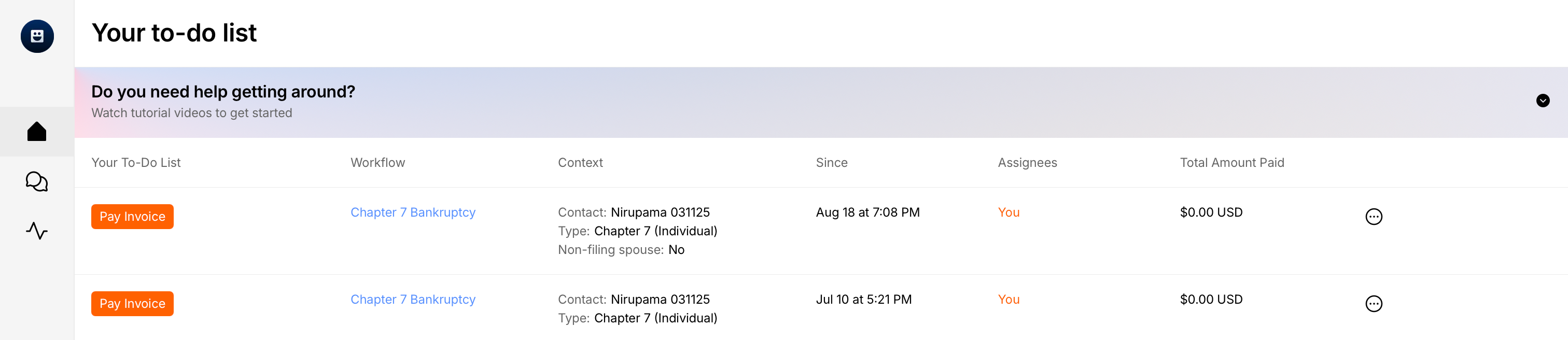
Don’t see Pay Invoice? Use Option B below to find the invoice from the Activity view.
Option B: Pay from your Activity view
In the left navigation, click Activity.
Open your Workflow (case).
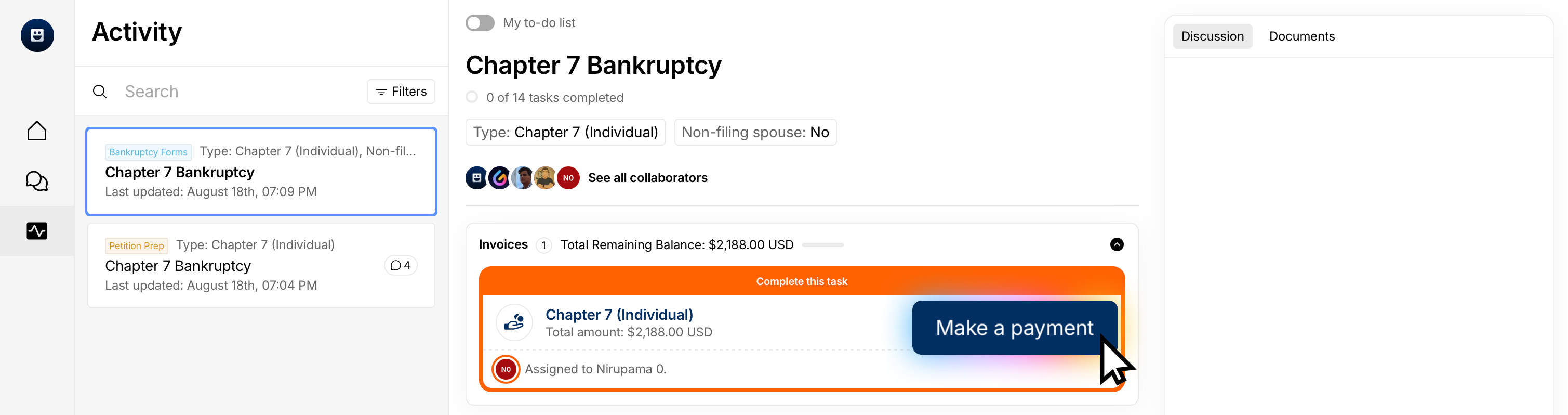
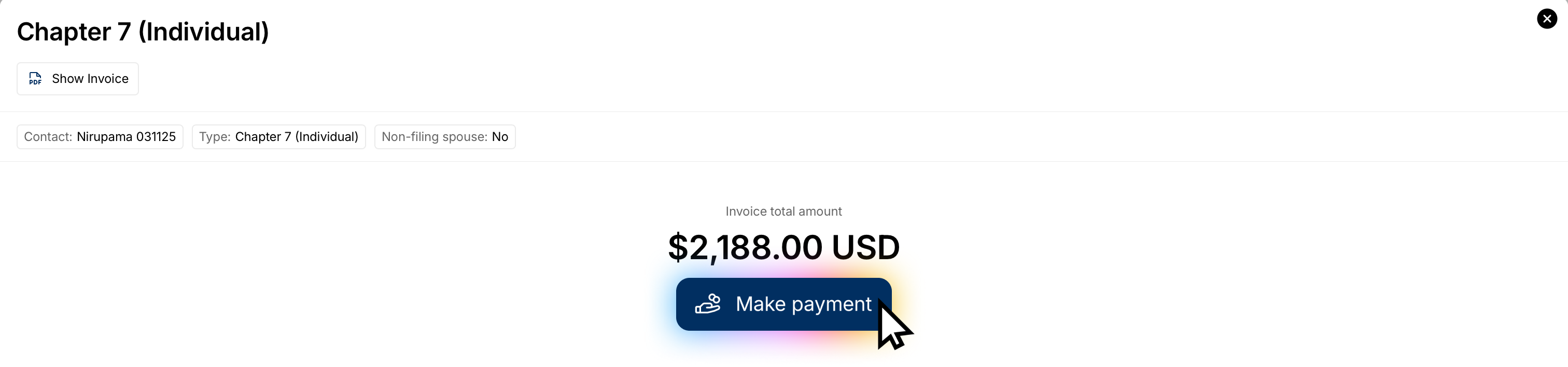
Open the invoice, then click Make Payment.
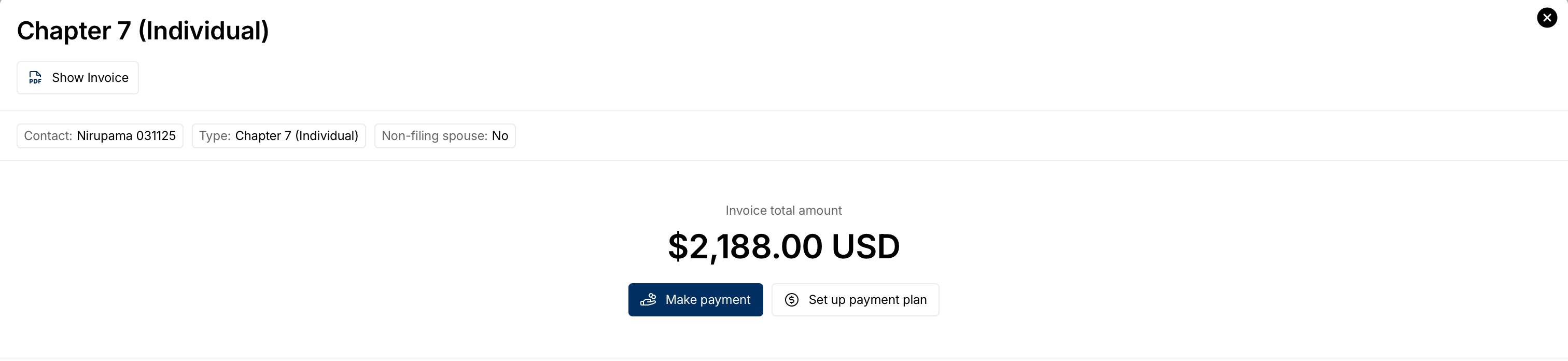
Choose how you’d like to pay
When you open the payment screen, you’ll see your total balance and any previous payments. You’ll have two options:
Make Payment (one‑time)
Set Up a Payment Plan (periodic payments)
Make a one‑time payment (Make Payment)
You can choose between Enter an amount to pay now and Pay in full
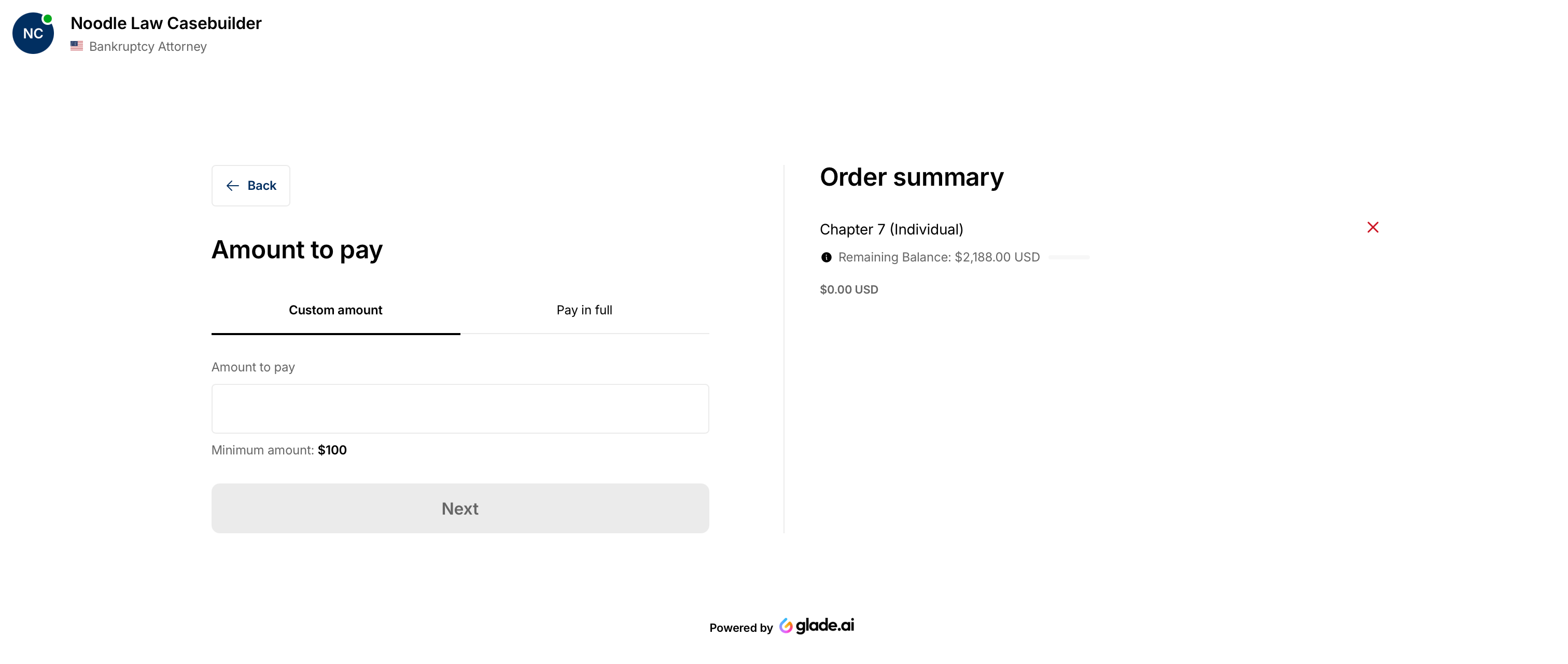
On Review Payment Method, choose your saved card (you’ll see the last four digits), or click the blue “+” to add a new card.
Click Pay (e.g., Pay via Debit) to complete the payment.
Once the payment is completed, you can download a receipt from the same screen. It would also be emailed to you
Set up a payment plan
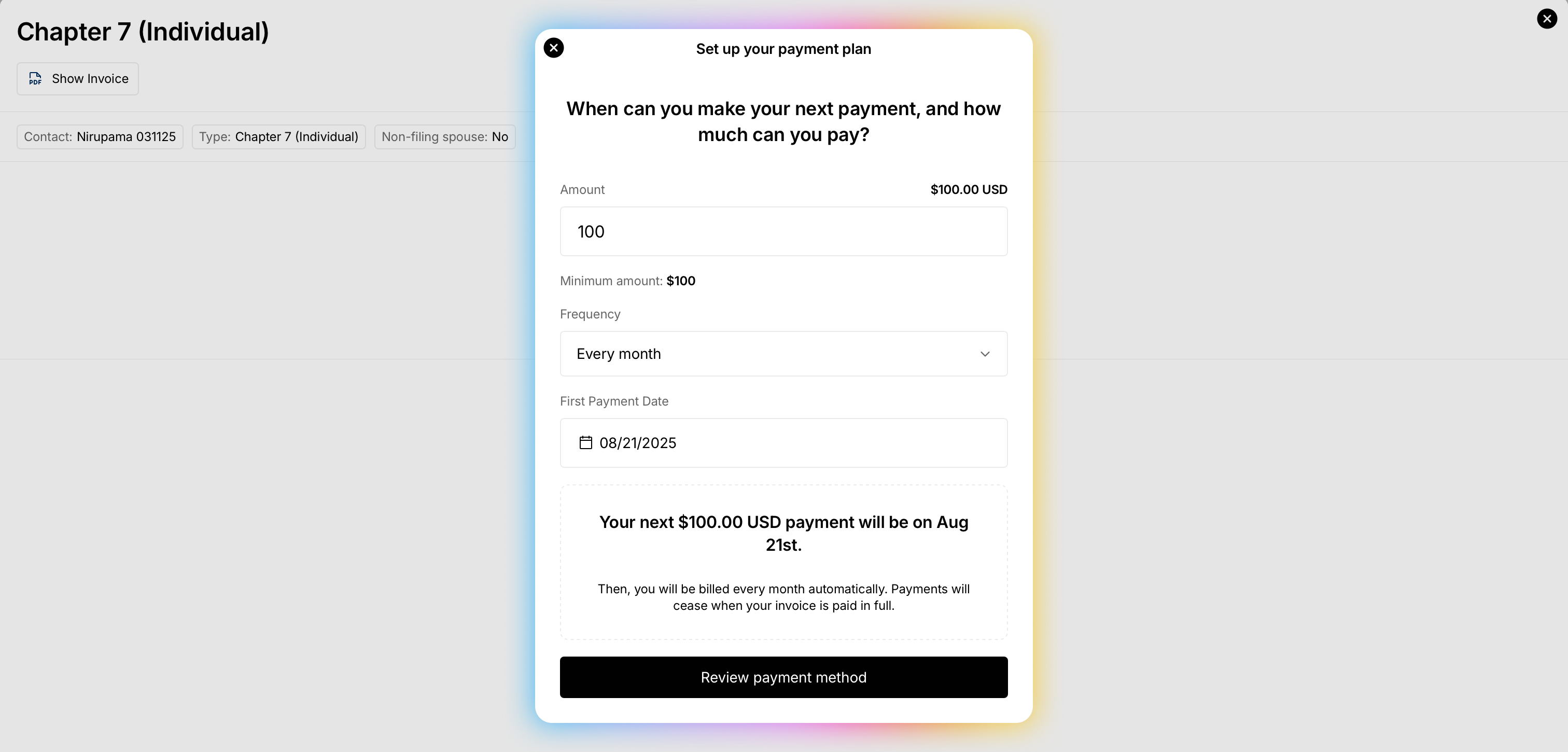
After clicking on Make a Payment, select Set Up a Payment Plan. A pop‑up appears.
Enter your payment amount, choose how often you want to pay (Monthly, Bi‑weekly, or Weekly), and select the first payment date.
Click Review Payment Method.
Choose your bank details or add a new payment method, then click Save.
That’s it—your plan is scheduled. Future payments will process automatically according to the schedule you set.
Tips
Make sure your payment method details are correct to avoid declines.
Option to Set Up a Payment Plan is only visible in cases your attorney has enabled it for the workflow. If not, it wont be visible.
You can return to Activity page any time to review your invoice status and recent payments.
Troubleshooting
Button not visible: Refresh the page, then check Activity. If still missing, contact your firm.
Payment failed or declined: Confirm card/bank details or try a different method, then retry.
Balance looks incorrect: Contact your firm to review the invoice.
Need help?
Send a message through your client portal or email us at support@glade.ai