
How to send Reset Password
If you can’t sign in, resetting your password gets you back into your account quickly so you can complete tasks and keep your Workflow moving. This guide walks you through requesting a reset link and setting a new password.
Who this is for: Clients who need to reset their Glade client portal password.
Before you start
Make sure you can access the email address associated with your portal account.
Have a new password in mind (see requirements below).
Steps to reset your password
Open the Glade sign‑in page.
Click Sign in (if you’re on a landing link), then select Forgot password.
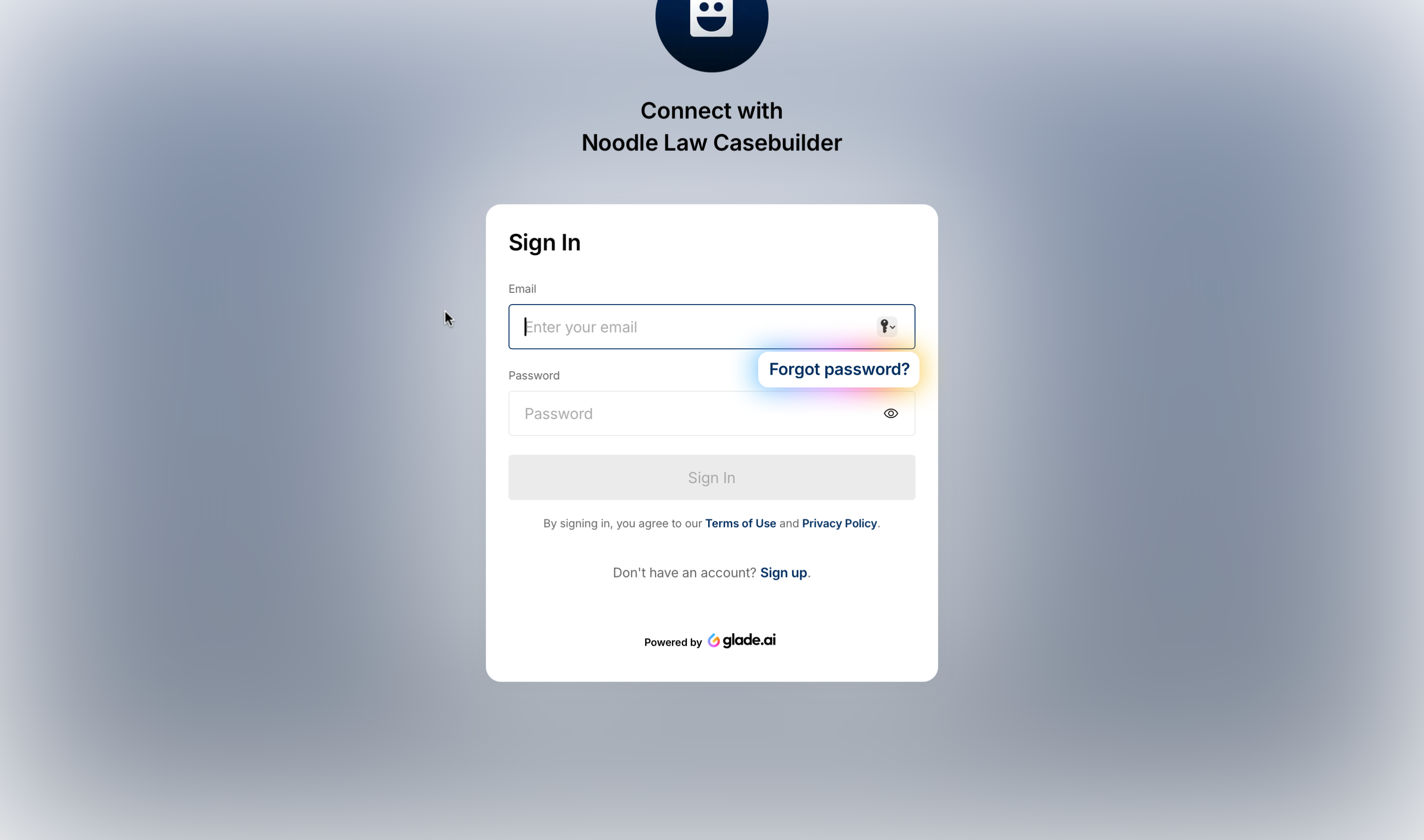
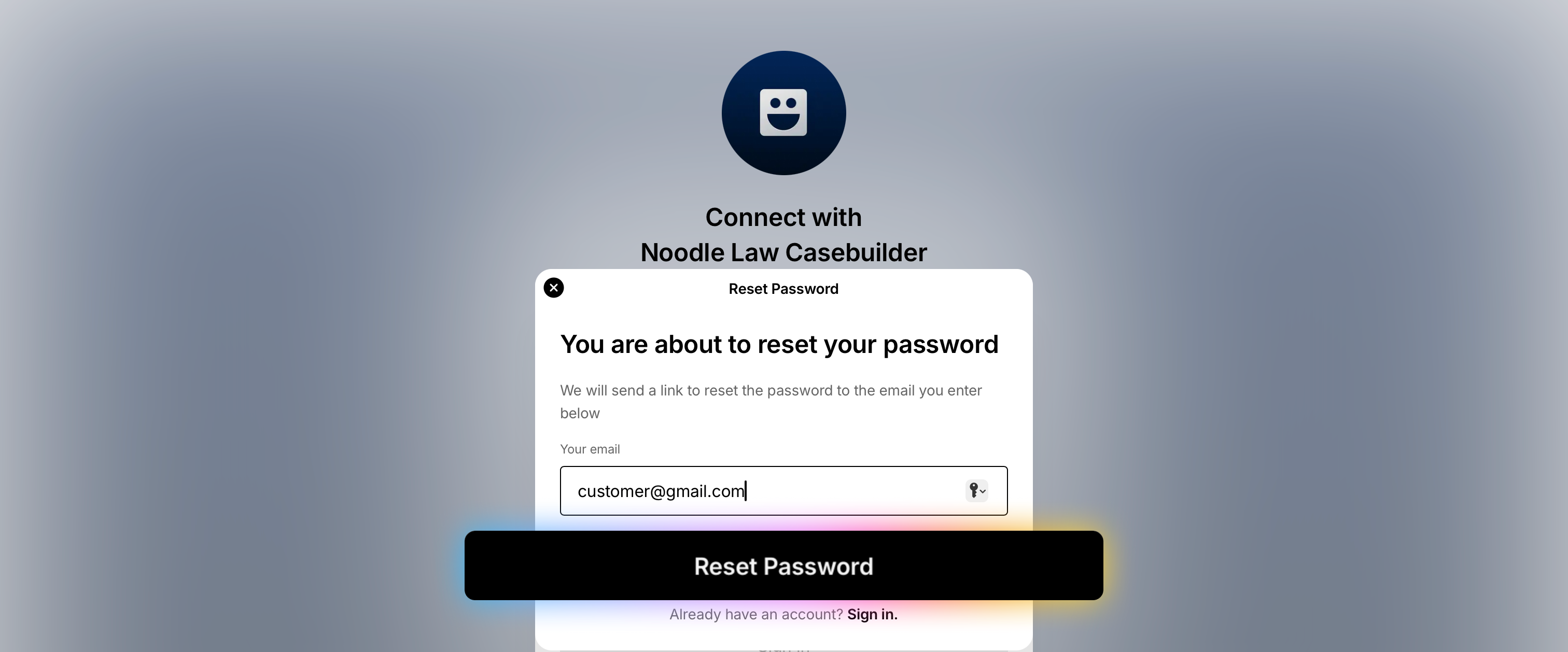
Enter your email and click Reset password.
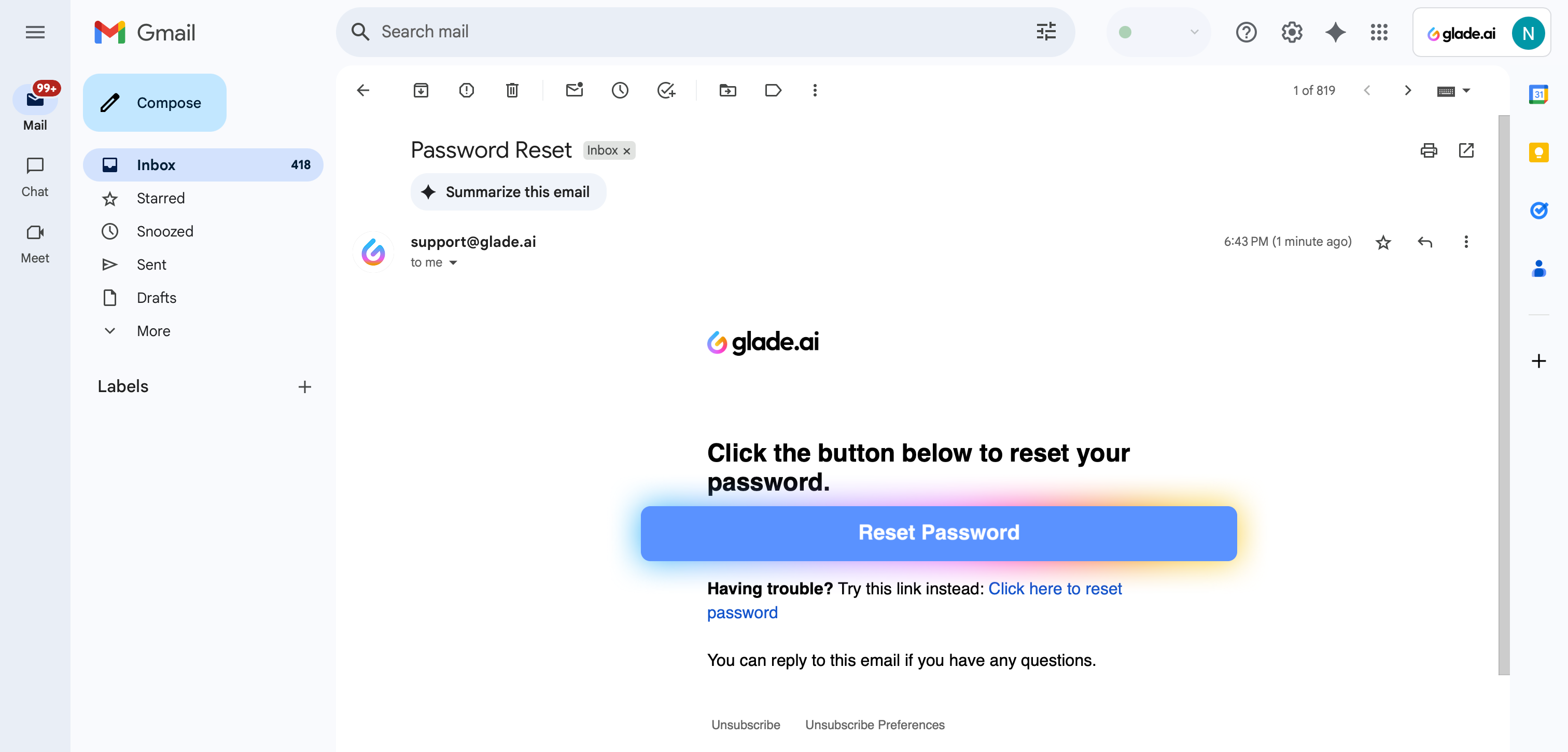
Check your email for a message with the subject “Password reset”.
Look in Inbox, Spam, and Junk folders.
If you don’t see it right away, wait a minute and refresh.
Open the email and click the Reset password link.
On the reset page, enter your new password and submit.
Return to the sign‑in page and log in with your new password.
Result: Your password is updated and you can access your client portal again.
Password requirements
Your new password must be at least 8 characters and include at least one special symbol.
Tip: Use a strong, unique password you don’t use elsewhere.
Troubleshooting
Didn’t receive the email? Confirm you entered the correct address, then check Spam/Junk and search for “Password reset”. Request another reset if needed.
Reset link not working: Copy and paste the link into your browser, or request a new reset email.
Still can’t sign in: Make sure you’re using the new password and the correct email on your account.
Need help?
Email support@glade.ai and our team will assist you.